Channel Map Help
Overview
This page describes Channels, the Channel Map, and how to use them when flying a tracker
Channels
Channels allow trackers to not interfere with each other during operation
A Channel is a number that you configure your tracker with.
This channel number informs your tracker how to transmit data simultaneously with other trackers without them interfering with each other.
Channel Map
The Channel Map is a visualization that helps users more intuitively understand the relationship between channel number, transmission schedule, registration, and other details
Every frequency band (eg 10m, 15m, 20m, etc) has a table of channels. Each number in the table is a channel. There are 600 channels ranging from number 0 to 599.
The color of each channel tells you something about whether the channel is being used or not.
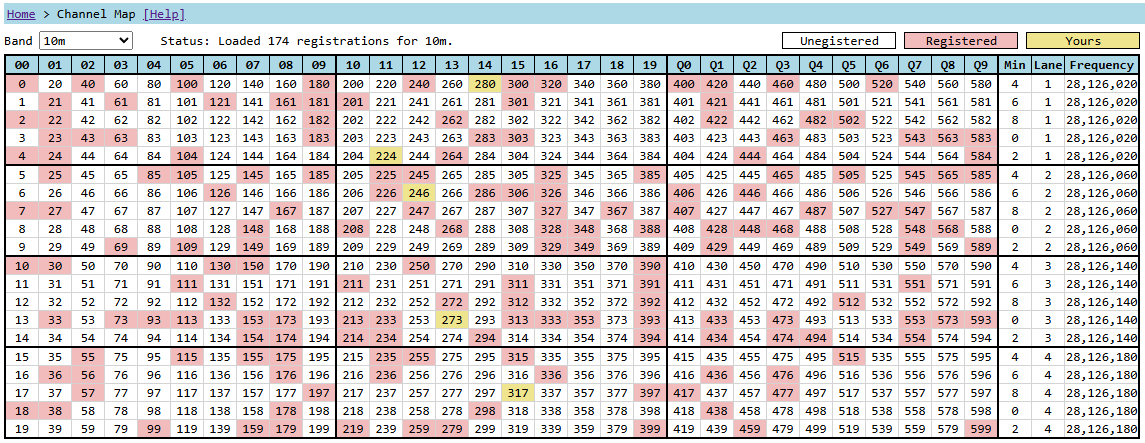
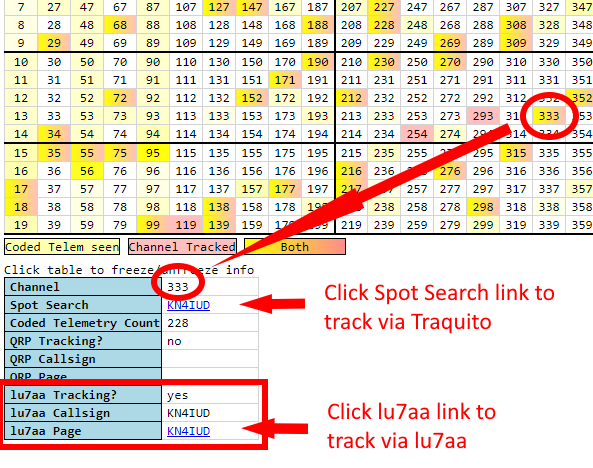
Hovering your mouse over each channel reveals details about that channel and usage.
Channel Map Colors
| Color | Meaning |
|---|---|
| White | Available for registration |
| Red | Channel registered and in use |
| Yellow | Channel registered and in use - by you |
Schedule
The channel informs your tracker when to transmit
Tracker message sending schedule
Every 10 minutes, the tracker starts a new "window" of transmission.
Each 2 minute slot is a message sending slot.
Typically the Regular message is sent in the first slot.
Typically the Telemetry message is sent in the second slot.
Each message starts at a 2 minute boundary.
| start minute | + 2 min | + 4 min | + 6 min | + 8 min |
|---|---|---|---|---|
| Regular | Telemetry | - | - | - |
The start minute is indicated on the Channel Map on the right of the channel number.
Finding the schedule for channel 584 on band 10m
On the Channel Map:
- Find channel 584 on band 10m
- Follow the row 584 is on rightward until you intersect with the column labeled
min. - This is the start minute that the Regular message will be sent on
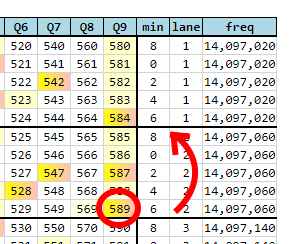
For channel 584:
- Start Minute = 2, so:
- Every 10 minutes, on 2 minutes past, the window starts again
- The Regular message is sent at 12:02, 12:12, 12:22, ...
- The Telemetry message is sent at 12:04, 12:14, 12:24, ...
- ...
The 10 minute window loops around
If it starts on the 2 minute mark, it'll send on 2, 4, 6, 8, 0, and back around again.
If it starts on the 6 minute mark, it'll send on 6, 8, 0, 2, 4, and back around again.
Warning
You can only use one channel at a time with the same start minute.
That means a maximum of 5 flights simultaneously, each with a different channel and different minute.
This applies to flights using the same callsign on the same band.
Frequency
There is a frequency associated with a channel
The channel you select is also associated with a given transmission frequency.
This helps differentiate channels with the same start minute value.
You can find the nominal frequency in the frequency column on the same row as your selected channel.
Other Channel Map Columns
There are many other columns
The top row of the Channel Map has columns ranging from 00 through Q9.
These are the id13 values.
These are unique identifiers that get embedded in the Telemetry data your tracker sends to uniquely identify it as yours.
Band
There is a Channel Map per-WSPR band

You can select between all the different WSPR bands (eg 20m, 10m, etc).
Channels on one band do not conflict with any other band (eg 20m and 10m)!
Registering a Channel
It is encouraged to register the channel you want to use for your flight
You should select an available channel to register.
This helps others accidentally conflict with you, and vise versa.
When to use Channel Map
You can register your flight in advance of your launch, or on the day of
Better to register in advance at the time you configure your tracker so no need to re-configure it later if someone else registers the channel you intended to use!
How to use Channel Map
Login Account
The first time you use this feature you will need to create a user and log in
See the FAQ about Login Accounts for more details.
Using
Use the Channel Map itself to Register and UnRegister channels
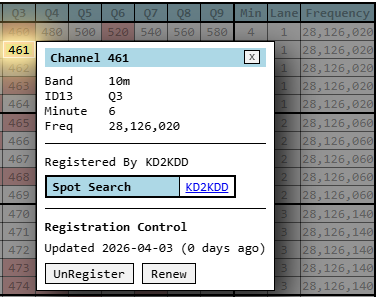
Click a channel and you will see a popup.
This popup allows you to Register or UnRegister use of a channel with a single click.
Once you register a channel, you can unregister it from the same popup.
| To Register | To UnRegister |
|---|---|
 |
 |
Beware too many registrations
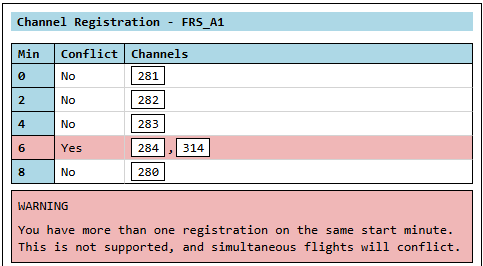
It is possible to have conflicts if you fly many trackers concurrently.
Keep an eye for any warnings in the Channel Registration pane for your logged in user, it will warn you if you make a mistake.
Multiple accounts
If you're registering a lot of flights for other people, that's fine!
It's better for a number of reasons to have individual accounts, though:
- It doesn't appear that a single individual has done a huge land grab on channels
- The links to flight tracking auto-generate based on callsign
- So if you use their callsign, it works!
Exploring
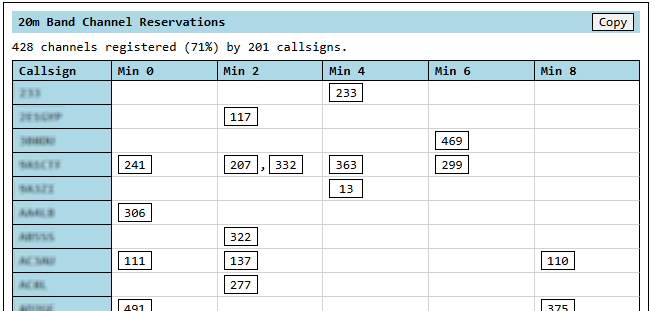
Easier to explore who else has registrations
A panel summarizes other registrations in a way that makes exploring the map much easier.
Stale Registrations
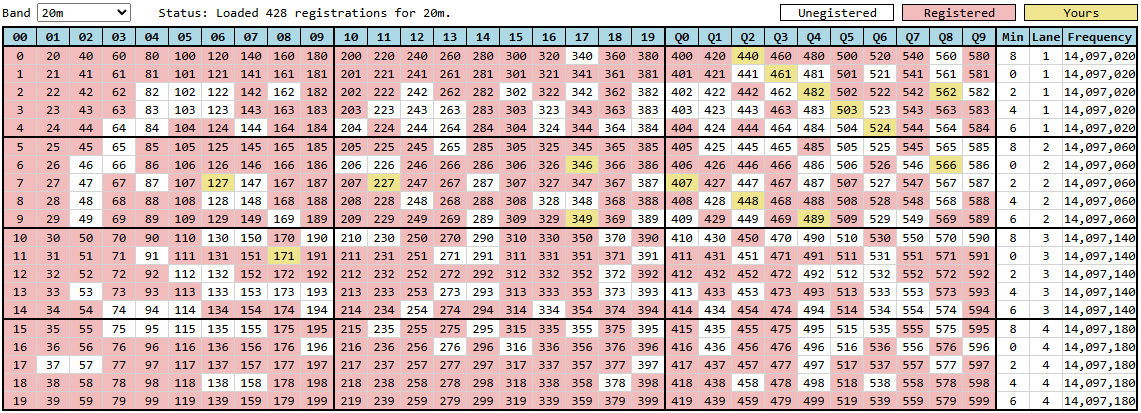
Sometimes channels get registered and forgotten about and bands fill up
Here's 20m at time of writing (really full):
That's ok, we can find the stale ones.
Admins to the rescue
Admins have a screen which allow them to see registrations which are likely stale and take action on them.
Admins can either Renew a registration or Flush it (delete it). Here is what their panel looks like.

Specific criteria
The criteria for a channel registration being eligible (not guaranteed) for being flushed.
- The registration is 3+ months old on a band which is more than 50% full
- The registration is 6+ months old
The desire is to keep this a low-maintenance-for-you system
Basically, you get a 6-month lease on a Channel unless things get pretty crowded.
You to the rescue
Before any admin can even look at your registrations, you can.
You get a yellow warning when you are 2 weeks away from a registration being eligible for being flushed.
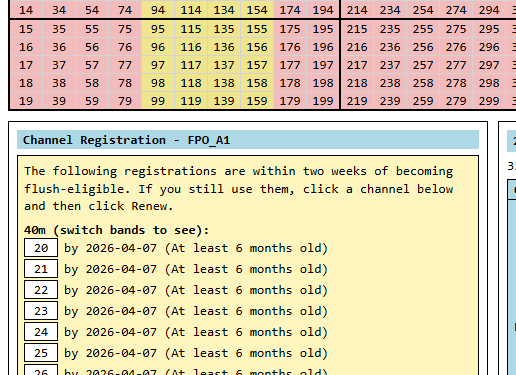
You get a red popup warning when you are 1 week away from a registration being eligible for being flushed.
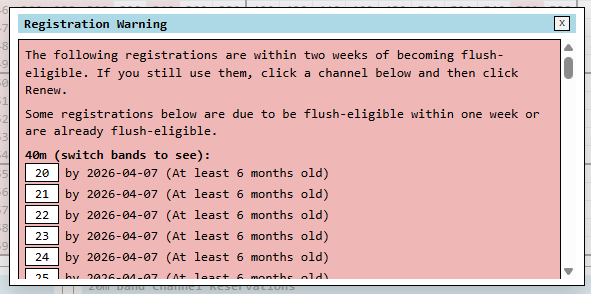
In that case, you have options:
- UnRegister your channel
- Renew your channel
When you Renew your account, you just update the "last touched" time of the registration and so the timer resets and you're no longer within that expiry period.